JPG to Text Converter: How to Extract Text from JPG Images Quickly and Accurately
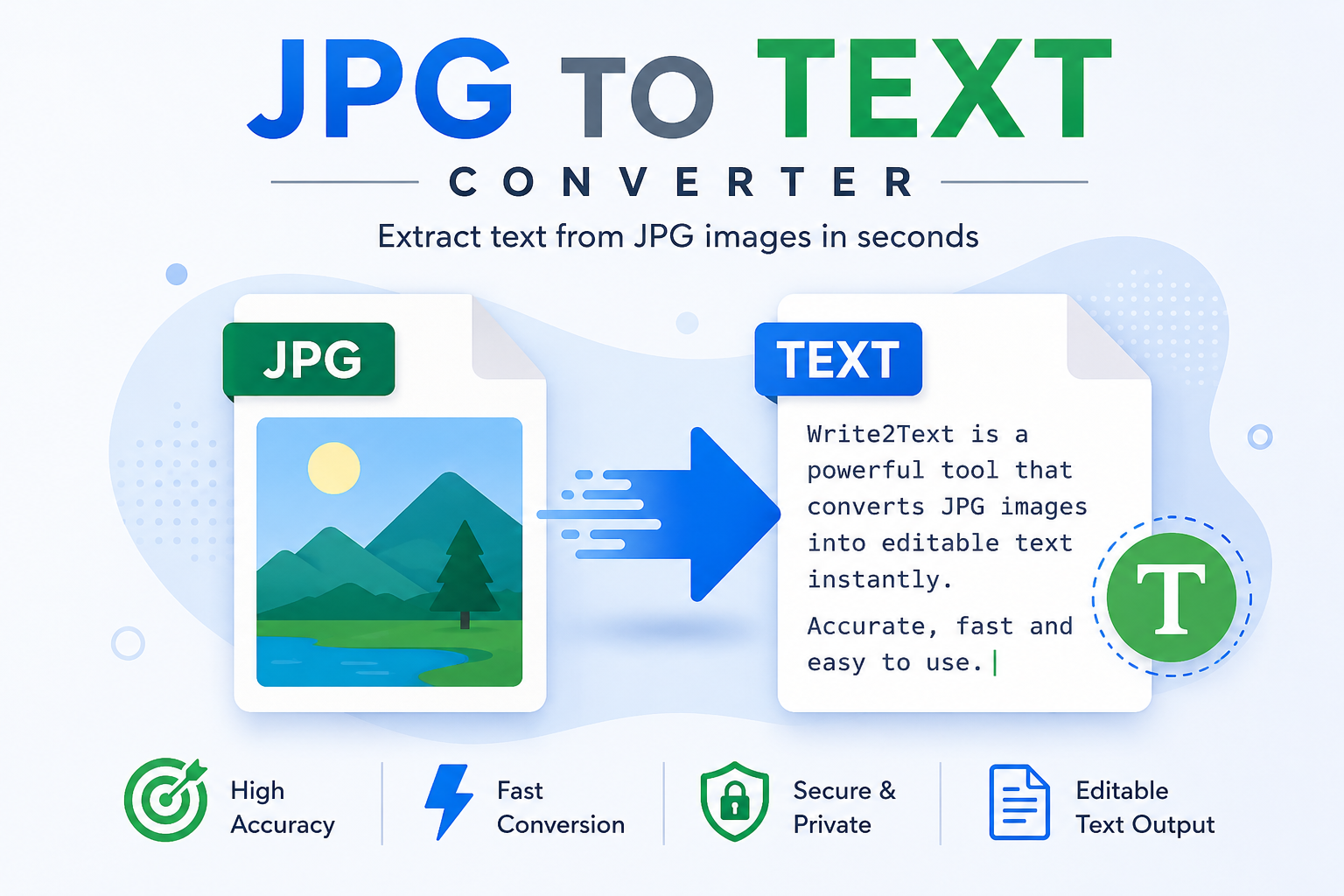
Every day, millions of photographs are taken using smartphones, digital cameras and tablets. Many of these images contain valuable information such as invoices, receipts, business cards, classroom notes, certificates, menus, letters and printed documents. While these photographs are easy to store and share, the text inside them cannot usually be copied, searched or edited directly.
This is where a JPG to Text Converter becomes extremely useful.
Instead of manually typing every word from a photograph, OCR (Optical Character Recognition) technology analyses the JPG image, identifies the printed characters and converts them into editable digital text. What could take several minutes—or even hours—to type manually can often be completed in just a few seconds.
Whether you are a student digitising lecture notes, a business owner processing receipts, a researcher working with printed material or simply someone who wants to copy text from a photograph, a JPG to Text Converter can save a significant amount of time.
In this guide, you will learn exactly how OCR works with JPG images, why image quality matters, how JPG compression affects recognition accuracy and the best practices for obtaining excellent OCR results.
What Is a JPG Image?
JPG (also written as JPEG) is one of the most widely used image formats in the world. Developed by the Joint Photographic Experts Group, it was designed to store photographs efficiently while keeping file sizes relatively small.
Unlike formats that preserve every pixel exactly as it was captured, JPG uses a compression technique that reduces the amount of data stored inside the image. This makes JPG files much smaller than many other image formats, allowing them to be shared quickly through email, websites and social media.
The popularity of JPG comes from its excellent balance between image quality and file size. A high-resolution photograph can often be compressed dramatically while still looking almost identical to the human eye.
This explains why nearly every smartphone saves photographs as JPG files by default.
Can OCR Read JPG Images?
Yes. Modern OCR engines are specifically designed to analyse JPG photographs and convert visible text into editable digital content.
In fact, JPG is one of the most common image formats processed by OCR software worldwide. Every day, businesses scan invoices, students photograph whiteboards, travellers translate road signs and professionals digitise printed documents using JPG images.
However, OCR accuracy depends on much more than the file extension itself.
A clear JPG photograph taken under good lighting conditions often produces excellent recognition results. On the other hand, a blurry or heavily compressed image may lead to recognition errors, missing words or incorrectly identified characters.
The quality of the original photograph remains the single most important factor influencing OCR performance.
Why JPG Is So Popular
The JPG format has remained popular for decades because it offers several important advantages that make it suitable for everyday photography.
- Small file sizes.
- Fast uploading and downloading.
- Supported by virtually every computer and smartphone.
- Ideal for photographs containing millions of colours.
- Easy to share by email or messaging applications.
- Compatible with almost every OCR application available today.
These advantages explain why most users never think about the image format used by their camera. They simply take a photograph, and the device automatically stores it as a JPG file.
How OCR Reads a JPG Image
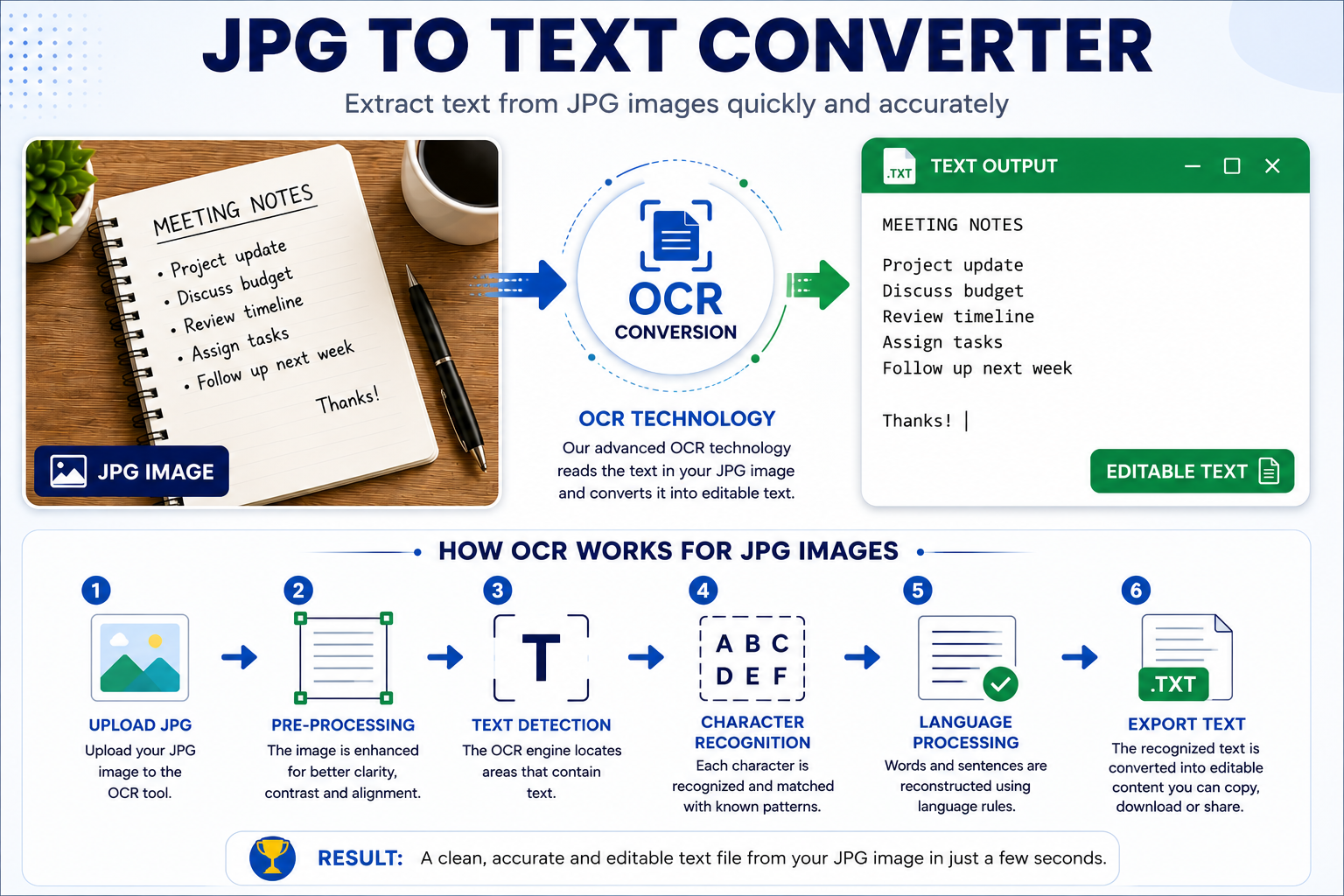
When you upload a JPG image to an OCR application, the software does far more than simply "look" at the photograph. A series of sophisticated processing steps takes place behind the scenes.
First, the software analyses the overall image quality. It identifies the document, separates it from the background and attempts to improve visibility by adjusting brightness and contrast where possible.
Next, the OCR engine locates the regions containing text. Rather than analysing every pixel equally, it concentrates on the portions of the image that are most likely to contain letters and numbers.
Finally, each recognised character is compared against thousands of known patterns before the software reconstructs complete words, sentences and paragraphs.
Modern OCR engines also use language models that examine neighbouring words. This helps improve recognition accuracy, particularly when individual characters are difficult to identify because of compression or image quality issues.
Why Some JPG Images Produce Better OCR Results Than Others
Not every JPG photograph is created equally. Two images may have exactly the same resolution while producing completely different OCR results.
The reason lies in how the image was captured.
A document photographed under bright, even lighting with the camera positioned directly above the page usually provides excellent OCR accuracy. By contrast, a document photographed in poor lighting, at an angle or while moving may contain blur, shadows or distortion that makes character recognition much more difficult.
This is why understanding image quality is just as important as choosing the right OCR software.
JPG vs PNG: Which Format Produces Better OCR Results?
One of the most common questions people ask is whether JPG or PNG images produce better OCR results. Although both formats are supported by modern OCR software, they were designed for different purposes, and those differences can influence text recognition.
JPG images use lossy compression. This means that when a JPG file is saved, some image information is removed to reduce the file size. In most photographs this reduction is almost invisible to the human eye, but OCR software analyses every character pixel by pixel. Small compression artefacts around letters may therefore reduce recognition accuracy.
PNG images, on the other hand, use lossless compression. Every pixel is preserved exactly as it was created. Text edges remain sharp, making PNG particularly suitable for screenshots, scanned documents and computer-generated graphics.
This does not mean that JPG is a poor choice. A high-quality JPG photograph often produces OCR results that are virtually identical to those obtained from a PNG image. The difference becomes noticeable mainly when JPG images have been compressed several times or saved using very low quality settings.
For everyday users, the most important factor is still the quality of the original image rather than the file format itself.
How JPG Compression Affects OCR Accuracy
Compression is one of the reasons JPG files are so popular. A photograph that originally occupies several megabytes can often be reduced to only a fraction of its size while remaining visually attractive.
However, OCR software looks at images differently from people. Tiny distortions introduced during compression can slightly change the shape of letters. Although these imperfections may be invisible when viewing the image normally, they can sometimes confuse character recognition algorithms.
For example, the letter O may occasionally be interpreted as the number 0, while an uppercase I might be mistaken for a lowercase l. Modern OCR engines use intelligent language models to reduce these mistakes, but image quality still plays a major role.
If possible, always upload the original JPG image instead of repeatedly editing and re-saving the same file. Every additional save may introduce extra compression that gradually reduces image quality.
Tips for Better OCR Results from JPG Images
Obtaining accurate OCR results is usually straightforward if a few simple guidelines are followed. Professional document scanning services rely on these principles every day.
- Use the highest camera resolution available.
- Photograph documents under good, even lighting.
- Avoid shadows across the page.
- Keep the camera directly above the document.
- Hold the camera steady to prevent motion blur.
- Avoid heavily compressed images whenever possible.
- Ensure strong contrast between the text and the background.
- Crop unnecessary borders before uploading.
- Use the original image rather than screenshots of screenshots.
- Review the recognised text for any minor corrections.
Following these recommendations often improves OCR accuracy far more than changing OCR software.
Common Problems When Converting JPG Images to Text
Although OCR technology has improved enormously over the past decade, some situations remain challenging.
Handwritten notes are naturally more difficult to recognise than professionally printed documents. Decorative fonts, coloured backgrounds and artistic lettering may also reduce recognition accuracy because the characters differ from standard printed text.
Images captured in poor lighting often contain digital noise. Likewise, documents photographed at an angle may introduce perspective distortion that makes some letters appear compressed while others become stretched.
Fortunately, many modern OCR systems automatically correct perspective, improve contrast and reduce image noise before beginning the recognition process. These improvements allow today's OCR software to achieve impressive accuracy even with ordinary smartphone photographs.
Practical Uses for a JPG to Text Converter
People use JPG OCR technology in many different situations, often without realising how much time it can save.
Students convert photographs of classroom whiteboards into editable notes. Teachers digitise printed worksheets. Business professionals extract information from invoices and receipts. Travellers translate restaurant menus and road signs. Researchers preserve historical documents, while office workers quickly copy information from printed contracts and letters.
Instead of manually typing hundreds or thousands of words, OCR performs the repetitive work automatically, allowing users to focus on reviewing and organising the information rather than entering it.
Frequently Asked Questions
Can I convert any JPG image into editable text?
Yes. Most JPG images containing clear printed text can be converted into editable text using OCR technology. The better the image quality, the more accurate the extracted text is likely to be.
Does OCR work with photographs taken on a mobile phone?
Absolutely. Modern OCR engines are designed to recognise text from smartphone photographs. A steady hand, good lighting and a clear document usually produce excellent results.
Can OCR recognise handwritten notes in JPG images?
Some OCR systems support handwriting recognition, especially when the writing is neat and consistent. However, printed text generally produces much higher accuracy than handwritten text.
Is JPG better than PDF for OCR?
Neither format is universally better. If the PDF already contains high-quality scanned pages, OCR works extremely well. JPG images are often more convenient when documents have been photographed using a smartphone.
Does image size matter?
Yes. Larger images usually contain more detail, making it easier for OCR software to distinguish letters and numbers accurately. Very small or heavily compressed images may reduce recognition accuracy.
Can I convert multiple JPG images?
Many OCR applications allow several images to be processed one after another. Some advanced systems even support batch processing for large collections of photographs.
Will OCR preserve the original formatting?
Basic OCR focuses on extracting the text itself. More advanced OCR systems may also preserve headings, paragraphs, tables and other elements of the original document layout.
Is my uploaded image secure?
Security depends on the OCR service being used. When working with confidential documents, always choose a trusted provider and review its privacy policy before uploading sensitive information.
Can OCR recognise different languages?
Yes. Many modern OCR engines support dozens or even hundreds of languages. Recognition accuracy depends on the quality of the source image and the language models available.
Can I edit the extracted text?
Yes. Once OCR has converted the JPG image, the text becomes editable. You can correct minor recognition errors, format the content and copy it into documents, emails or reports.
Why Use the Write2Text JPG to Text Converter?
The Write2Text JPG to Text Converter is designed to make text extraction simple, fast and accessible. Instead of installing complicated software, you simply upload your JPG image, allow the OCR engine to analyse it and receive editable text within seconds.
The tool is suitable for students, teachers, businesses, researchers, office workers and anyone who regularly works with printed documents stored as photographs.
Whether you need to extract text from receipts, contracts, lecture notes, certificates, reports or printed letters, the Write2Text JPG to Text Converter helps eliminate repetitive manual typing and improves productivity.
Best Practices Before Uploading a JPG Image
Taking a few extra seconds to prepare your image can make a noticeable difference to OCR accuracy.
- Clean the camera lens before taking the photograph.
- Lay the document on a flat surface.
- Use natural light whenever possible.
- Avoid reflections from glossy paper.
- Capture the entire document without cutting off any text.
- Keep the camera parallel to the page.
- Avoid excessive zooming.
- Upload the original image whenever possible.
These simple habits help the OCR engine recognise characters more accurately and reduce the amount of editing required afterwards.
Conclusion
JPG remains the world's most popular image format because it combines excellent image quality with relatively small file sizes. As a result, millions of photographs containing valuable text are created every day using smartphones and digital cameras.
Thanks to modern Optical Character Recognition technology, these photographs no longer need to remain static images. OCR can transform printed words into editable digital text within seconds, making documents easier to search, edit, organise and share.
Although OCR software has become remarkably accurate, the quality of the original photograph still plays the most important role. Clear lighting, sharp focus and minimal compression consistently produce the best results.
Whether you are studying, managing business documents, digitising printed material or simply copying text from a photograph, a reliable JPG to Text Converter can save valuable time while reducing repetitive manual work.
As OCR technology continues to improve through artificial intelligence and machine learning, converting photographs into editable documents is becoming an everyday productivity tool for individuals and organisations around the world.
Try the Write2Text JPG to Text Converter
Ready to convert your JPG images into editable text? Upload your photograph to the Write2Text JPG to Text Converter and experience how quickly OCR can transform printed documents into digital content that you can edit, search and reuse.
For even more guides, explore our related articles on Image to Text Conversion, OCR technology, PNG to Text Conversion and PDF OCR to learn how to get the best results from your documents.